
How to Clean a Laptop Screen Safely
Clean fingerprints, dust and light smudges from a laptop screen without damaging its coating. Use a dry microfiber cloth first and only a lightly dampened cloth when needed; never spray liquid directly onto the display. To clean keys and crumbs too, see how to clean a computer keyboard.
Updated
What you need
Tick off what you already have.
Materials
 AI illustration
Step 01 / 06
Shut down and unplug the laptop
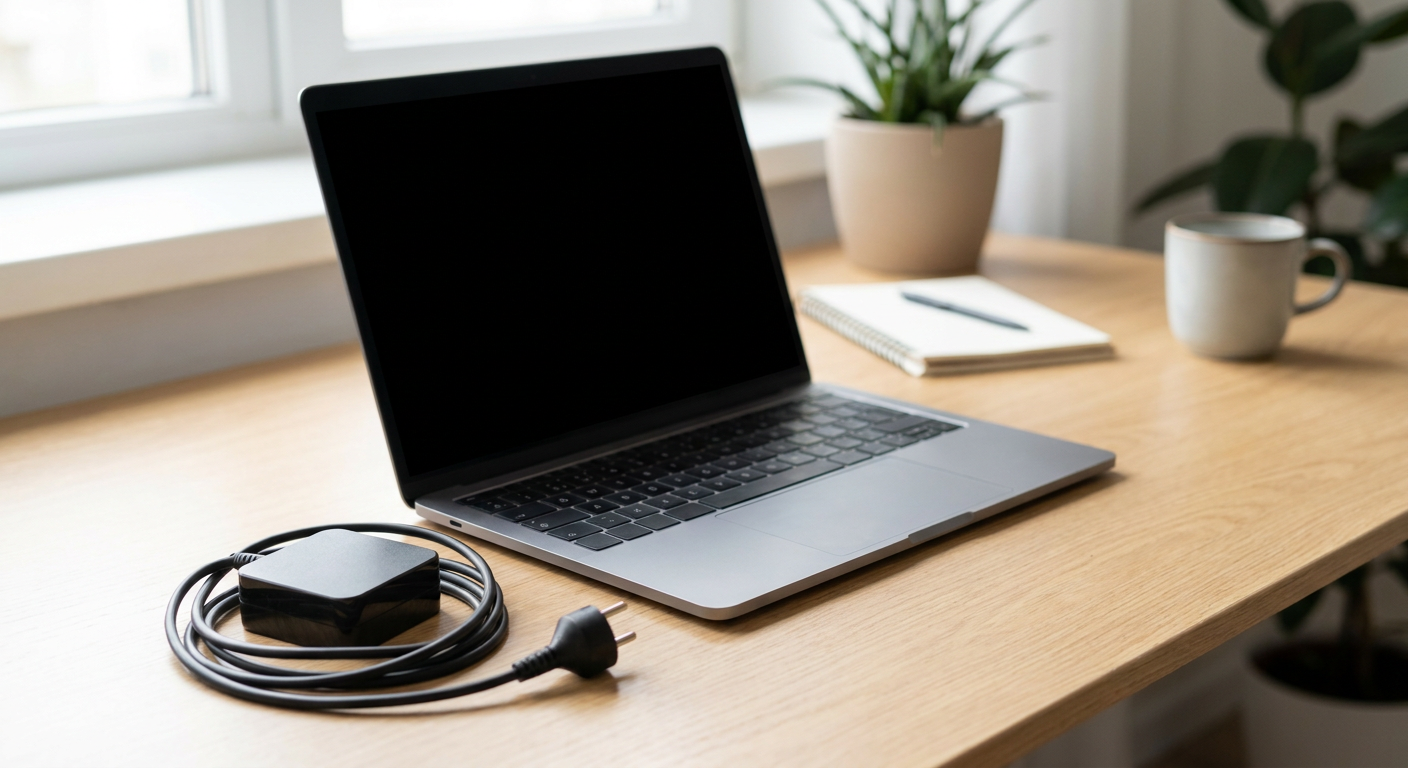
Turn the laptop completely off, disconnect the charger and unplug any accessories. Let the screen cool if the laptop has been running. A dark, cool screen makes dust and smudges easier to see and reduces the risk of electrical damage while cleaning.
1. Shut down and unplug the laptop
Instructional illustration generated with AI for Howmigo. Turn the laptop completely off, disconnect the charger and unplug any accessories. Let the screen cool if the laptop has been running. A dark, cool screen makes dust and smudges easier to see and reduces the risk of electrical damage while cleaning.
2. Remove loose dust with a dry cloth
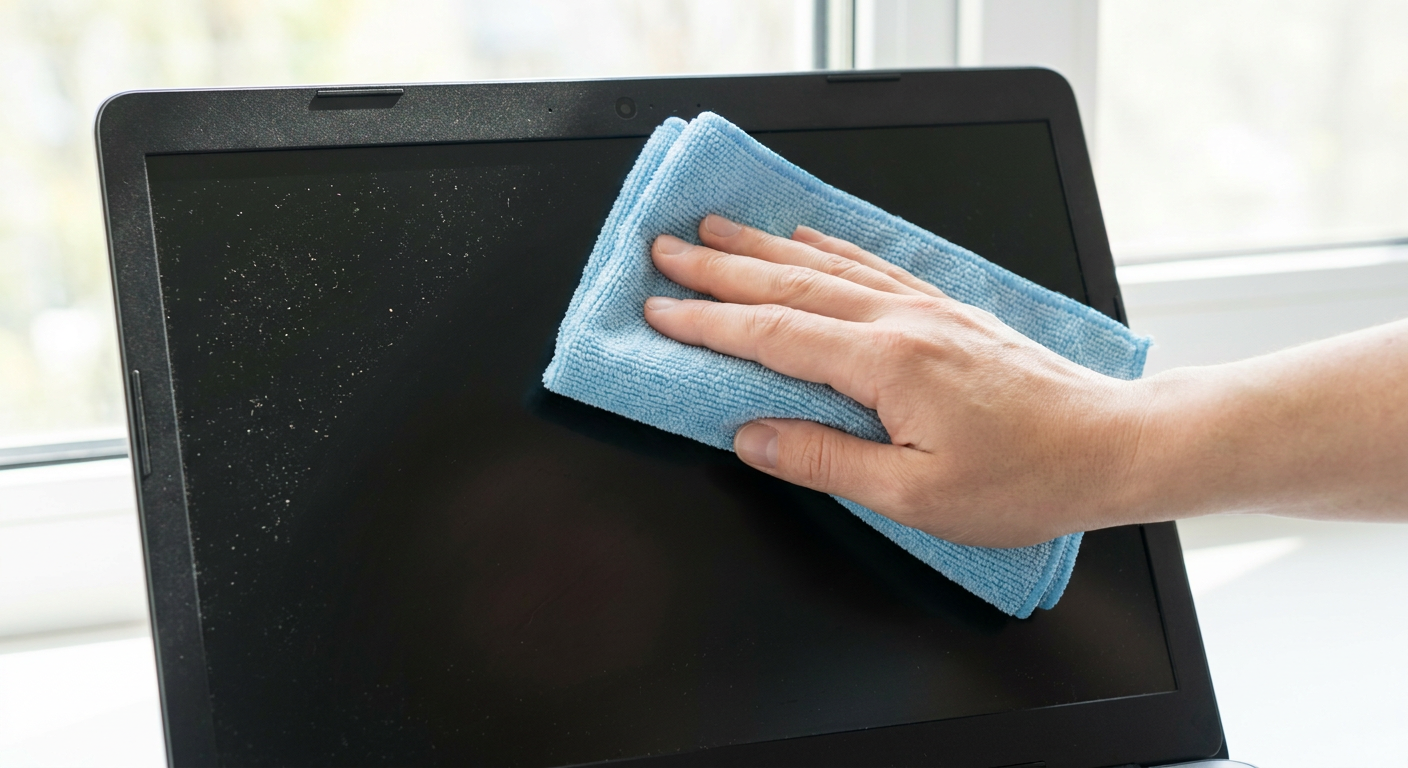
Instructional illustration generated with AI for Howmigo. Use a clean, soft microfiber cloth. Wipe the screen very gently with broad strokes to lift loose dust. Do not press hard, scrub one spot or use paper towels, tissues or abrasive cloths, which can scratch or mark the display coating.
3. Lightly dampen the cloth for stubborn marks
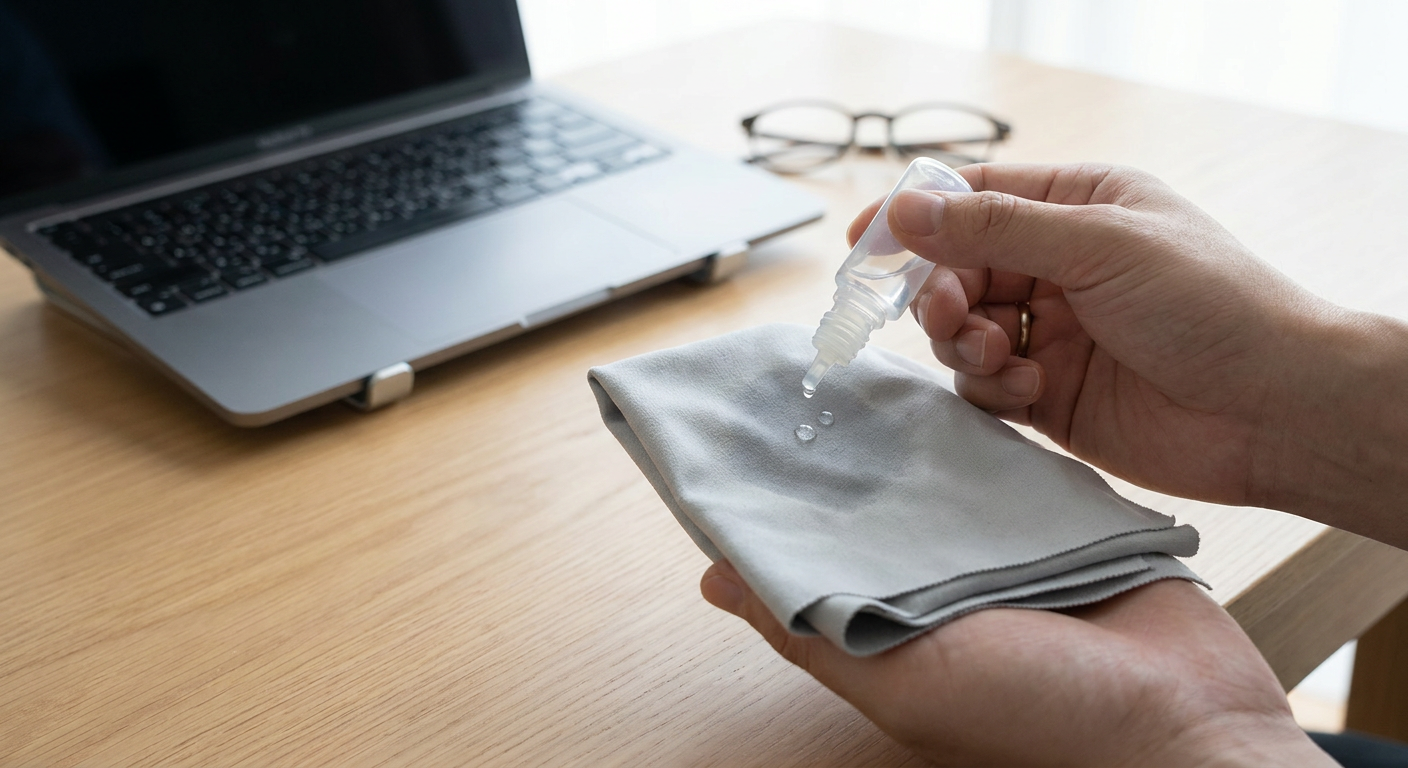
Instructional illustration generated with AI for Howmigo. If fingerprints or smudges remain, lightly dampen a clean section of the microfiber cloth with distilled water. The cloth should be barely damp, not wet or dripping. Never spray water or cleaner directly onto the screen, because liquid can run into the bezel or internal components.
4. Wipe the screen gently
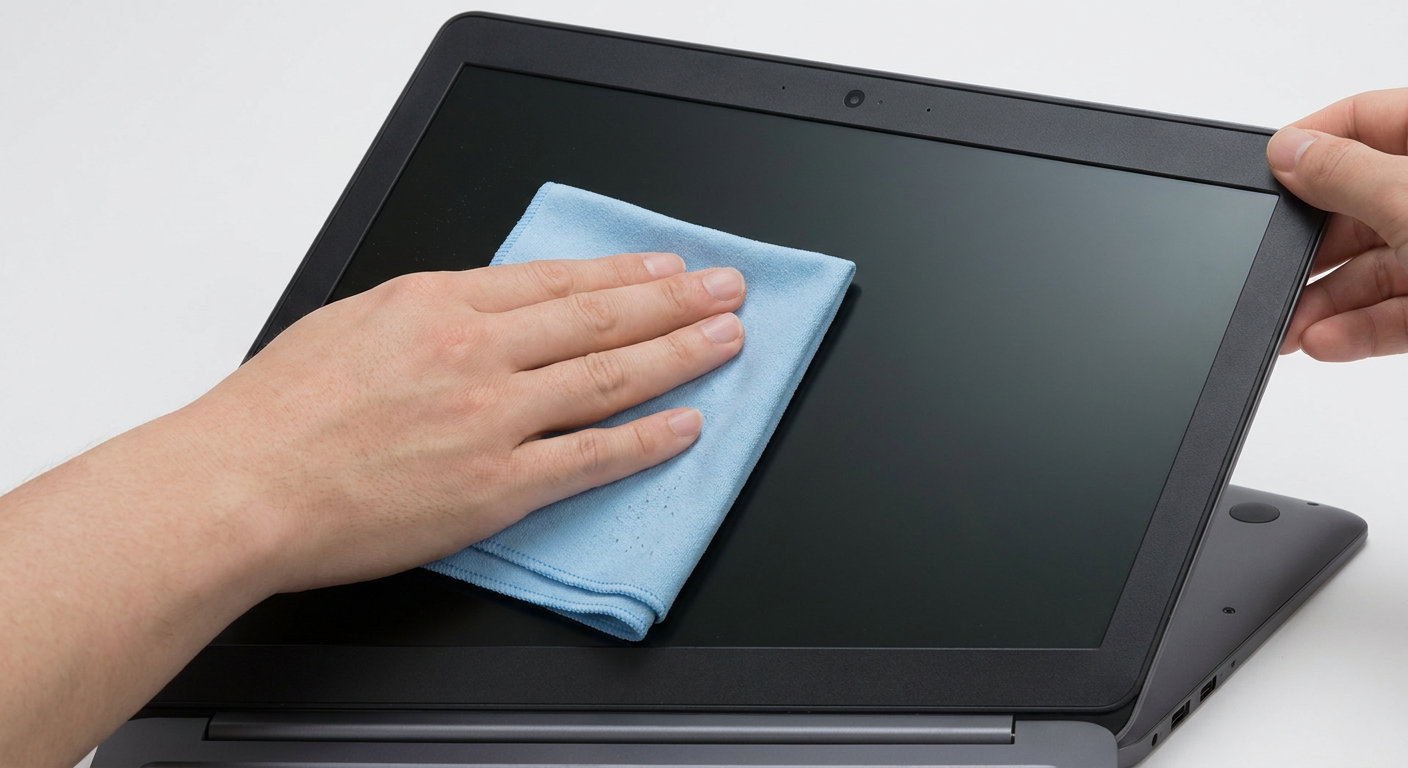
Instructional illustration generated with AI for Howmigo. Wipe the display with light pressure using smooth overlapping strokes. Support the lid with your other hand if needed so you do not push the screen backward. Avoid letting moisture collect around the edges, camera, hinges or bezel.
5. Dry the screen completely
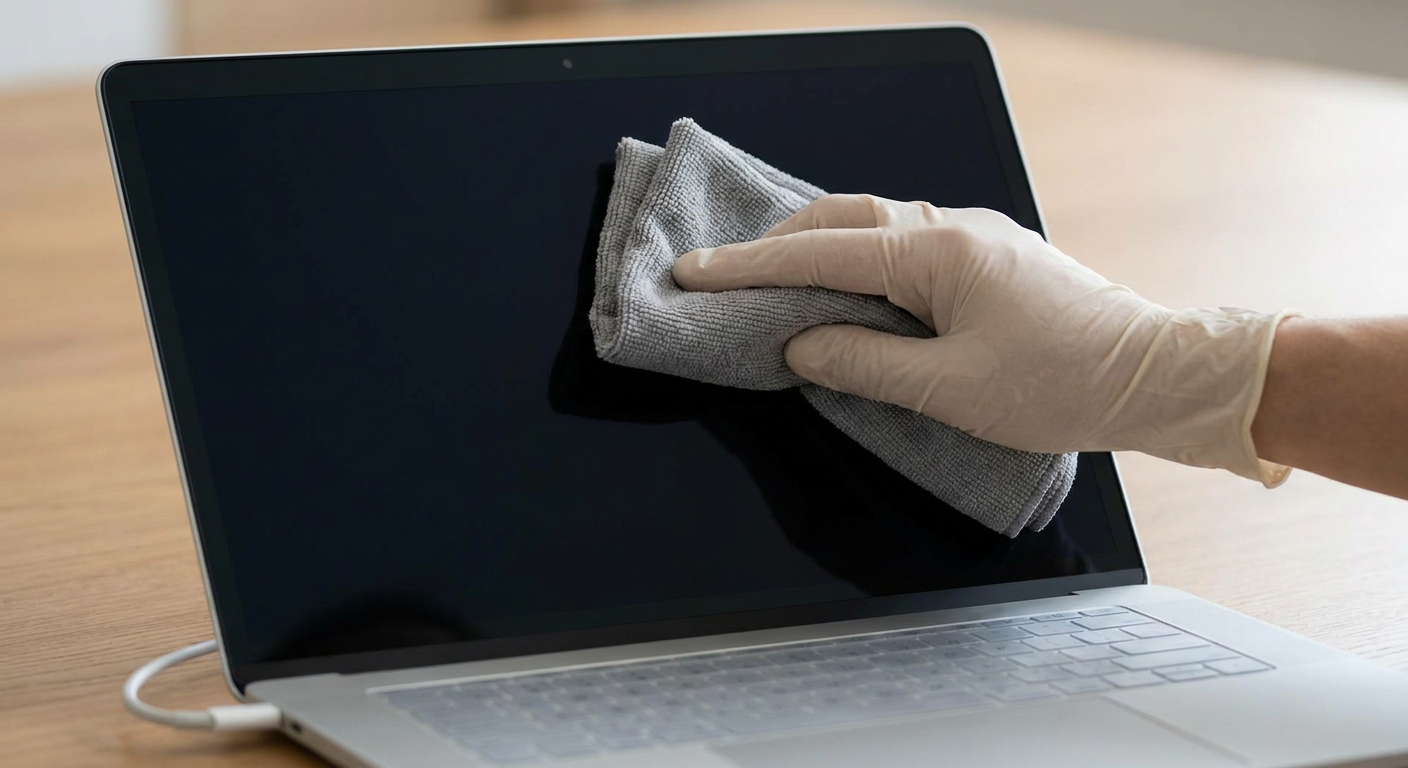
Instructional illustration generated with AI for Howmigo. Use a dry part of the microfiber cloth to remove any remaining moisture or streaks. Leave the laptop open and powered off until the display and all edges are completely dry. Do not reconnect power while moisture is present.
6. Check the result before powering on
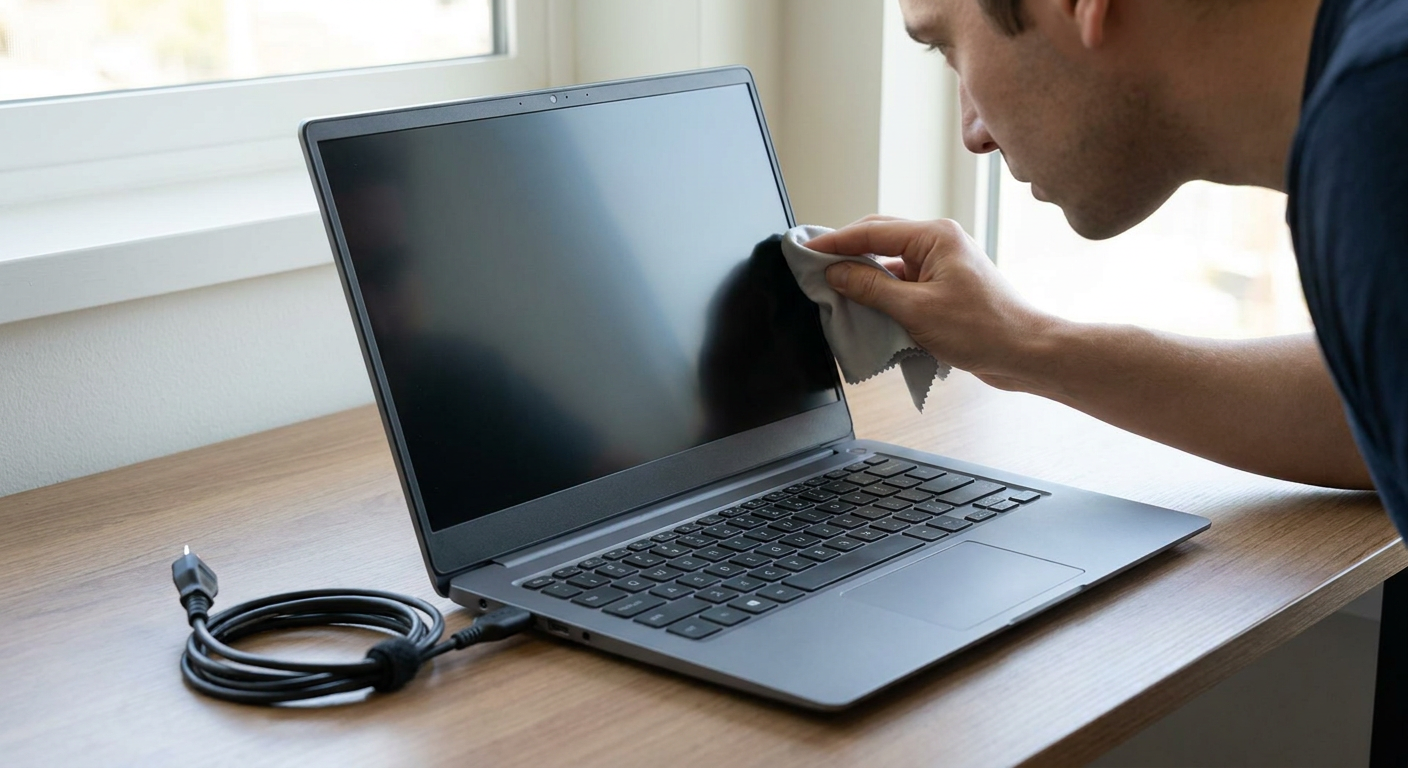
Instructional illustration generated with AI for Howmigo. Inspect the screen from an angle for remaining streaks or damp areas. Repeat only with gentle wiping if necessary. Once everything is fully dry, reconnect the charger and accessories and turn the laptop back on.
Common questions & troubleshooting
Did this guide help you?
Was this guide useful?
Discussion
No comments yet
Ask a question, share a tip, or reply to someone else.
Sign in to commentLoading comments…