
How to Clean a Computer Keyboard
Clean everyday dust, crumbs and fingerprints without removing the keys. Allow about 15 minutes plus drying time; liquid spills need a different response. For a laptop display, follow how to clean a laptop screen safely.
Updated
What you need
Tick off what you already have.
Tools
Materials
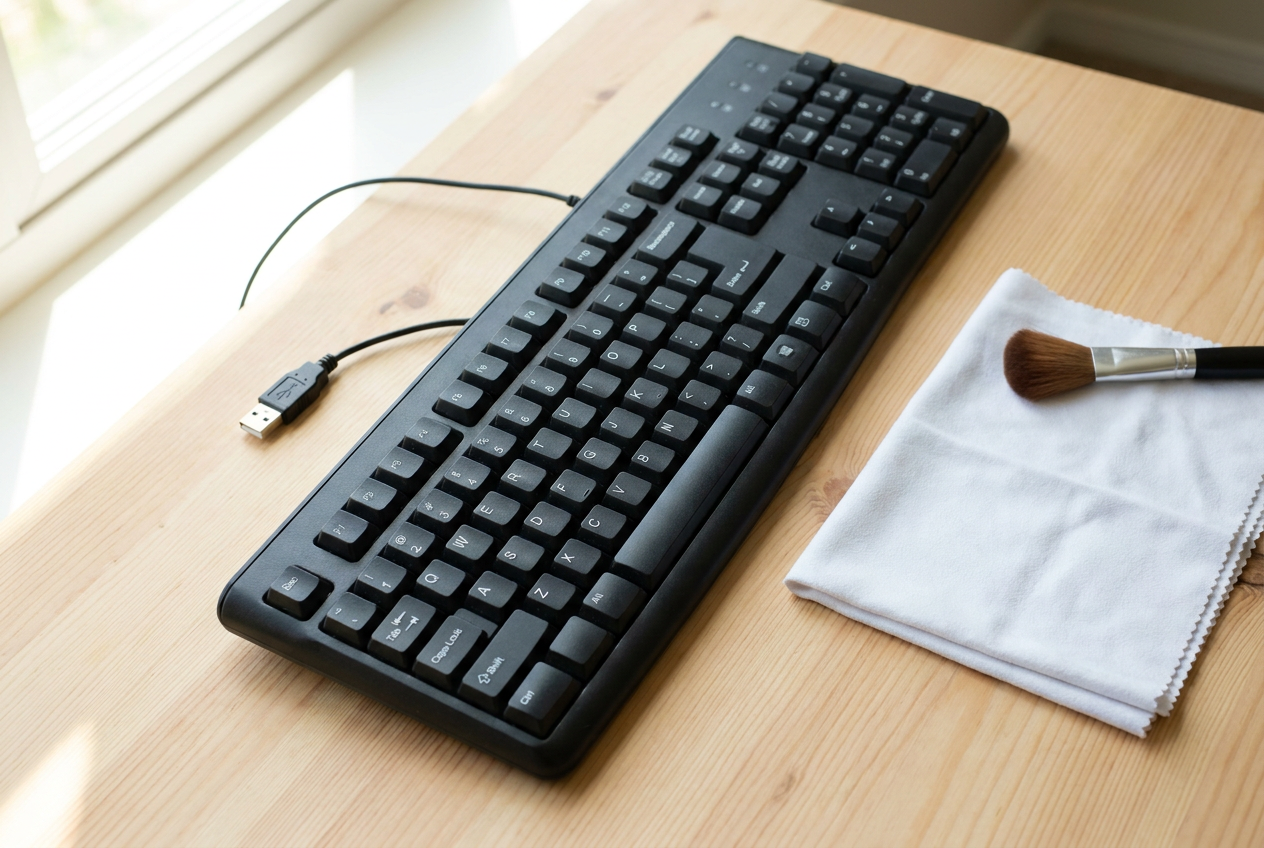 AI illustration
Step 01 / 05
Disconnect the power
Check the care instructions for your model. Unplug an external keyboard; switch off a wireless model and remove user-removable batteries. For a laptop, shut it down fully and unplug the charger. Do not open the case or remove an internal battery.
1. Disconnect the power
Instructional illustration generated with AI for Howmigo. Check the care instructions for your model. Unplug an external keyboard; switch off a wireless model and remove user-removable batteries. For a laptop, shut it down fully and unplug the charger. Do not open the case or remove an internal battery.
2. Remove loose crumbs
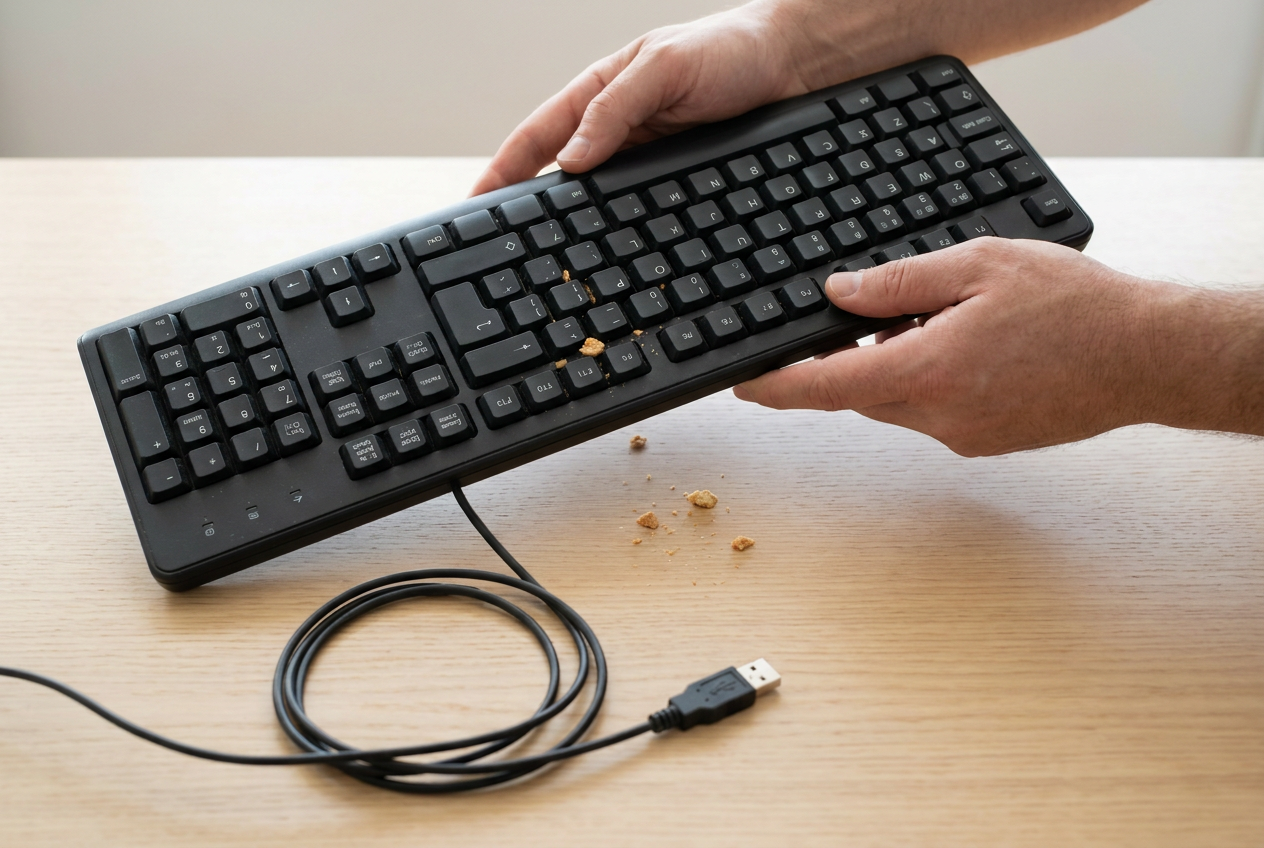
Instructional illustration generated with AI for Howmigo. Hold an external keyboard upside down over a clear surface and tap it gently. Support a laptop securely and only tilt it as its manufacturer permits. Never shake or hit it. Leave the keycaps attached.
3. Brush between the keys
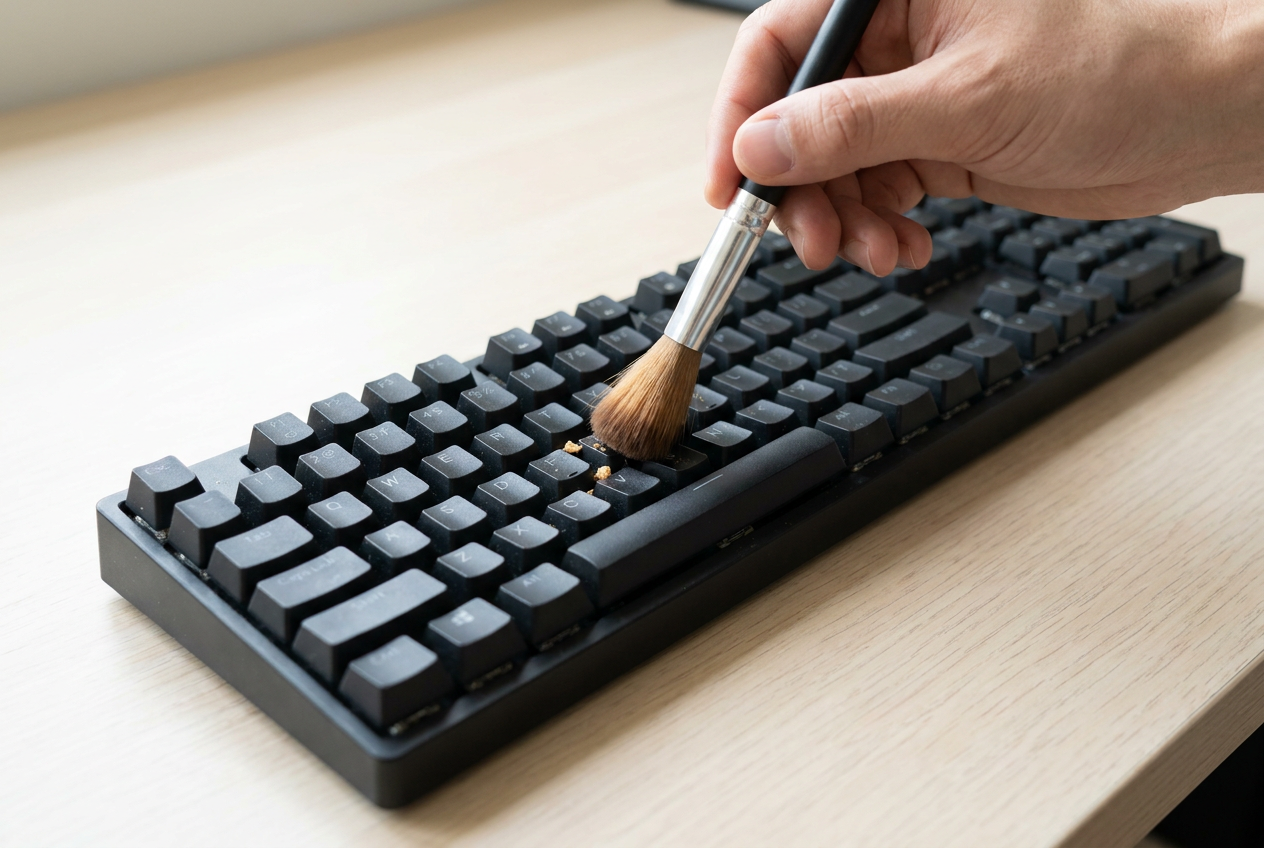
Instructional illustration generated with AI for Howmigo. Use a clean, dry, soft electronics brush to sweep debris out from between the keys without forcing the bristles underneath. Use compressed air only if the model's instructions allow it, following their distance and angle guidance and the can's instructions. Do not blow with your mouth.
4. Wipe the key surfaces
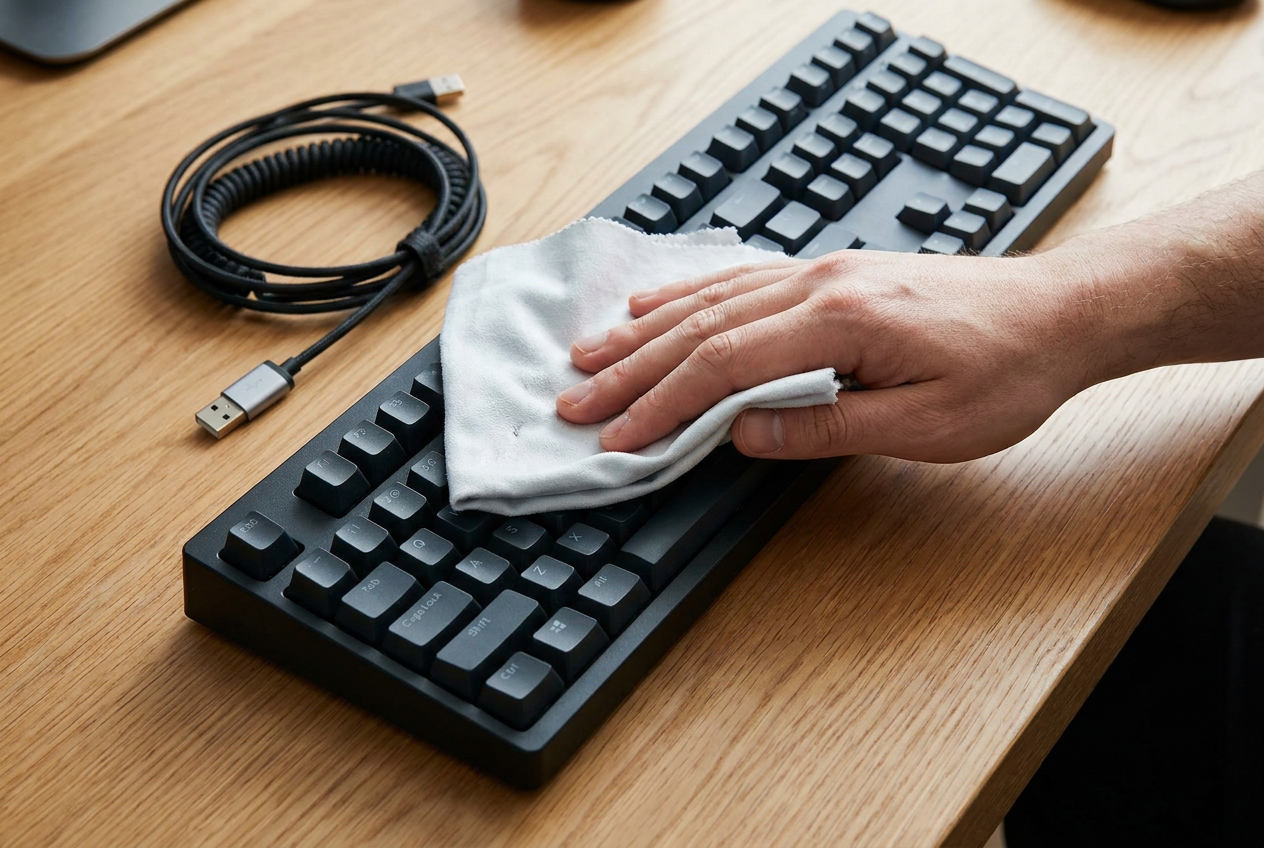
Instructional illustration generated with AI for Howmigo. Start with a dry lint-free cloth. For stubborn marks, use only a cleaner approved for the model, applied to the cloth rather than the keyboard. The cloth must be barely damp, never dripping. Wipe key tops and accessible edges gently; keep moisture out of gaps and ports. Do not soak or rinse the keyboard.
5. Dry completely and test
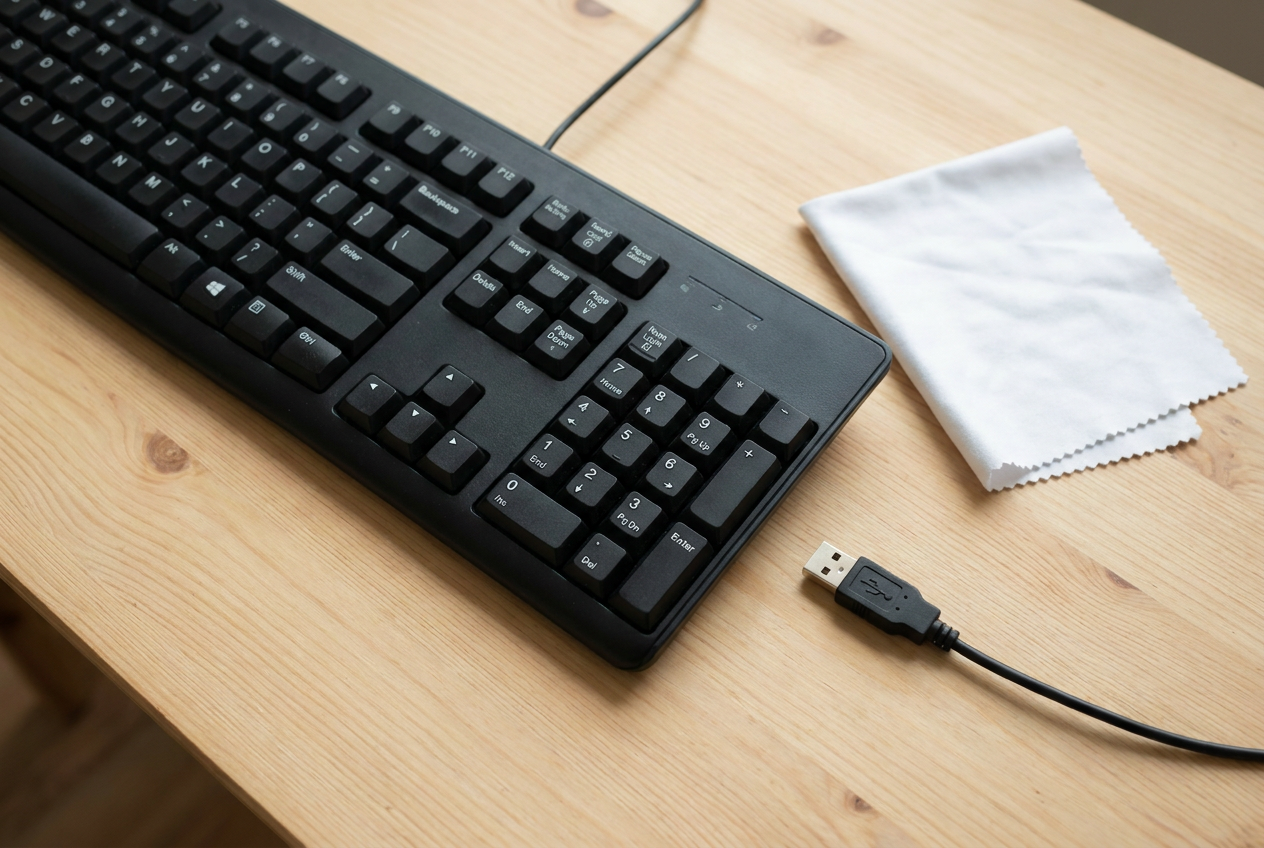
Instructional illustration generated with AI for Howmigo. Wipe with a dry cloth and let everything air-dry completely before reconnecting power or batteries. Do not use heat. Test the keys in a blank document. If a key still sticks or fails, follow the manufacturer's service guidance rather than prying it off. If liquid entered the keyboard, keep it powered off and seek repair advice.
Common questions & troubleshooting
Did this guide help you?
Was this guide useful?
Discussion
No comments yet
Ask a question, share a tip, or reply to someone else.
Sign in to commentLoading comments…